
Android Help
Teen Patti Star “App Not Installed”: Package Conflicts and Update Checks
The Android message “App Not Installed” does not identify one specific cause. It can appear when a package conflicts with an existing application, contains an unsuitable version, lacks required components or does not support the device.

Method: a public-documentation guide, not a hands-on test of a Star build. Diagrams are illustrative. Sources & limitations
Choose the guide that matches the failure stage
One attempt, one useful observation
Record the exact wording before retrying. Then choose the matching route; this is a triage checklist, not a diagnosis of your APK.
Swipe the table sideways to compare.
| What happened | Useful next observation | Avoid this shortcut |
|---|---|---|
| Download never finished | Browser transfer status and saved file size | Repeatedly tapping Install on a partial file |
| File opens with a parsing message | Full filename and package format | Renaming an XAPK or ZIP to APK |
| Installer rejects an update | Whether the original app still opens; package and signing records | Deleting the working app to remove the conflict |
| Installation finishes, then app closes | Last visible screen and launch time | Treating a crash as an installation error |
Download never finished
- Useful next observation
- Browser transfer status and saved file size
- Avoid this shortcut
- Repeatedly tapping Install on a partial file
File opens with a parsing message
- Useful next observation
- Full filename and package format
- Avoid this shortcut
- Renaming an XAPK or ZIP to APK
Installer rejects an update
- Useful next observation
- Whether the original app still opens; package and signing records
- Avoid this shortcut
- Deleting the working app to remove the conflict
Installation finishes, then app closes
- Useful next observation
- Last visible screen and launch time
- Avoid this shortcut
- Treating a crash as an installation error
The last case belongs in the crash guide; a parsing message belongs in the parse-error guide. An installer’s generic message is not proof of a signing mismatch.
This article covers an installation that Android does not complete. It does not cover an app that installs successfully and then closes.
| What you see | Where to continue |
|---|---|
| A parsing error before installation | APK parse error checks |
| App not installed during a new install or update | Continue with the checks below; record whether this is a first install or an update |
| Installation finishes, but launching fails | Not opening or crashing |
| The app opens with a different account | Missing account after changing phones |
A parsing error before installation
- Where to continue
- APK parse error checks
App not installed during a new install or update
- Where to continue
- Continue with the checks below; record whether this is a first install or an update
Installation finishes, but launching fails
- Where to continue
- Not opening or crashing
The app opens with a different account
- Where to continue
- Missing account after changing phones
Keep the exact message and the file's source. Do not uninstall a working copy merely to turn an update into a fresh installation. Teen Patti Master, supplied elsewhere on this site, is a different app and is not a Star repair or update.
If Teen Patti Star already works on your phone and a replacement APK is rejected, preserve the installed copy while investigating. Uninstalling immediately can remove account information and conceal the reason the update was incompatible.
This guide focuses on distinguishing package and update problems from other installation failures. It does not verify any APK file or recommend bypassing Android’s checks.
Start with the Exact App Identity
First record the installed app identity and version. A shared name is not enough. This guide uses the Dream Global.TW listing (com.mengtegame.xingcakesfunny) as its app reference and provides general checks, not a reproduced device diagnosis.
First Installation and Update Failures Need Different Checks
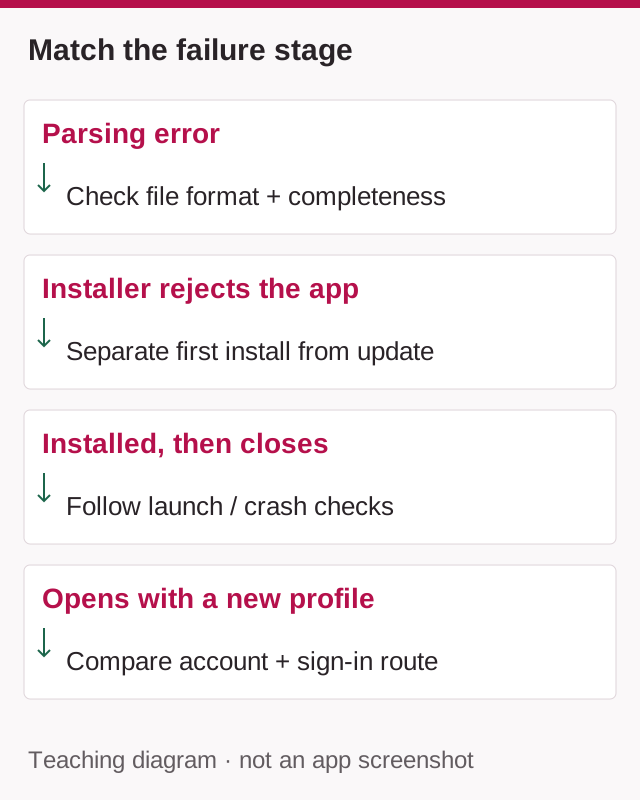
For a first installation, there may be no trusted installed copy to compare. Start with the file source, format, device requirements and exact installer message. Do not invent a signing conflict from the words “App not installed” alone.
For a replacement, preserve the existing app while comparing the candidate with it. If the source or app identity differs, stop treating the file as a routine update. A failed replacement is useful evidence to investigate, not a prompt to erase the old copy.
If Android or Play Protect explicitly blocks the file, record that warning separately. Do not disable the protection just to see whether installation succeeds. A successful installation would not, by itself, resolve the warning about trust.
These branches narrow the question you send to the publisher: “first installation fails at this step” and “this replacement fails over this existing version” are different support requests.
What Android Checks During an Update
Android requires the update to match the installed application ID. It also requires a compatible signing relationship and an acceptable internal version code.
The signing certificate must match or support a valid signing-key rotation. Under the documented platform conditions, the update’s version code must be equal to or higher than the installed code. Android’s app-update requirements.
These checks explain why copying a title and increasing the number in a filename cannot create a valid update.
They also explain why switching distribution channels may fail. Two files advertised as the same product may not be interchangeable as updates.
The appropriate response is to identify the mismatch, not assume Android is making an arbitrary mistake.
Scenario 1: The Package IDs Are Different
Imagine your installed application uses package ID A, while a downloaded file uses package ID B.
Even if both display “Teen Patti Star,” Android treats them as different application identities. The second package is not an update to the first.
It may install separately, or it may encounter another problem. A different package ID by itself should not be described as the explanation for every installation error.
The account consequence is equally important: a separate application does not automatically inherit the first application’s Player ID, progress or purchases.
Before proceeding, establish which publisher owns each product. Do not uninstall the original simply because the new icon looks similar.
Scenario 2: The Package Matches but Signing Does Not
A matching package ID can still have an incompatible signing identity.
Possible explanations include a modified file, an unrelated publisher using the same package text or different distribution arrangements. The error alone does not establish which explanation applies.
Ask the verified developer whether the downloaded build is an authorised update for your installed version.
Do not attempt to re-sign the APK yourself or follow instructions to disable signature verification. Those actions do not establish that the file belongs to the intended publisher.
Preserving the original installation gives you a better chance of keeping access while the mismatch is investigated.
Scenario 3: The Version Name Looks Newer but the Code Is Lower
Android separates the user-facing version name from the internal version code.
A file described as version “5.0” might have an internal code lower than the installed build. The label alone does not determine update ordering.
For example, an installed code of 420 and a downloaded code of 410 indicate a downgrade in that application’s code sequence, regardless of which display label looks newer.
Android documents version codes as the mechanism used to prevent ordinary installation of lower-code updates. Android version-name and version-code documentation.
Most users do not need to inspect package internals manually. Ask support to confirm the correct release and distribution channel instead of relying on a website’s “latest version” claim.
Scenario 4: The File Is Incomplete or Uses a Different Package Format
A download can finish incorrectly, or the file may not be a standalone APK.
Android App Bundles are publishing packages from which Google Play generates suitable APKs. Some installations involve a base APK plus additional components. A copied base file may not be sufficient by itself. Android App Bundle documentation.
Renaming .apks, .apkm, .xapk or another archive to .apk does not convert its contents.
If the publisher offers a supported store installation, use that route. Avoid combining files from unrelated sites or installing an unknown “helper” application merely because a download page demands it.
When an ordinary APK appears incomplete, obtain one fresh copy from the established source and test that copy only.
Check Storage and Device Compatibility
A package problem can coexist with a device problem.
Inspect available internal storage and the publisher’s minimum Android requirements. The download size is not the same as total installation space because extraction and temporary files can require more room.
Some apps also include native code for particular processor architectures. A build can be unsuitable for a device even when its Android version appears recent enough. Android documents these architecture interfaces as ABIs. Android ABI documentation.
Do not assume that “64-bit,” “latest” or “universal” in a filename guarantees compatibility.
If the developer provides multiple builds, ask which one supports your exact phone model. There is no benefit in repeatedly testing the same incompatible package.
Trying this on a Windows PC or Mac rather than an Android phone? Start with the computer compatibility guide before applying phone-specific fixes. It distinguishes supported desktop routes from emulator use; an APK is not a Windows installer.
Treat Security and Administrator Messages Separately
A security warning is not the same as a version conflict.
Read whether Android is asking to scan an unfamiliar application, identifying harmful behaviour or enforcing a device-management restriction.
Google recommends keeping Play Protect enabled. A warning should be investigated through the publisher rather than dismissed as a routine obstacle. Google Play Protect guidance.
A managed work profile can also restrict installation. Contact the administrator when the message identifies organisational policy.
Do not remove a work profile, disable protection or alter unrelated settings to force a game installation.
Why Uninstalling Is Not the First Fix
Removing the existing application changes the task from updating to installing afresh. It may also remove local account information.
Before considering that step, record the Player ID, profile name, login method and any relevant support ticket.
If your version uses a guest session, do not assume the original account will return after reinstalling. The public listing does not provide a verified recovery guarantee.
A fresh installation succeeding after an uninstall also does not prove the downloaded file was trustworthy. It may simply mean there is no longer an installed package against which Android checks update compatibility.
The identity question still needs an answer.
What to Send to Support
A minimal installation observation record
No phone test is claimed here. Use this blank format to record your own attempt; it is not a completed test report. Include one screenshot of the exact installer message, with notifications and personal details cropped out. Keep the error’s full wording, even if it appears in Hindi.
Observation date and time: ___
Phone model / Android version: ___
First install or update over an existing app: ___
Existing app name / version, or not installed: ___
Candidate source URL / complete filename / saved size: ___
Last action and exact message: ___
Existing app still opens: yes / no / not applicable
What changed in the single retry, and observed result: ___ / not retried
“Opened installer, then App not installed appeared” is an observation. “The signature is wrong” is a diagnosis requiring further evidence. Keep those separate. If a protection warning appeared, record it and stop rather than retrying with protection disabled. If you have not attempted an install, say so; do not create a failure just to complete this record.
First collect the version and source views. We do not need passwords, OTPs, identity documents or an unredacted account screen. Ask the verified publisher for the appropriate private support channel before sharing logs.
Contact the address listed for the verified application:
app_developer@dreamglobal.com.tw
Explain whether you are installing for the first time or updating an existing copy. Include the phone model, Android version, current app version, download source and exact error.
If known, provide the downloaded file’s version metadata. Do not invent it from the filename.
Ask a focused question: “Is this file an authorised update for my installed version, and should it preserve my current account?”
Keep passwords and login codes out of the message.
Frequently Asked Questions
Does “App Not Installed” always mean a signature conflict?
No. It is a broad failure message with several possible causes.
Will clearing the game’s cache fix a package mismatch?
Cache clearing does not change the APK’s package ID, signature or version code.
Can a factory reset solve the problem?
It is not an appropriate first response to one rejected game package. It affects the entire device and does not establish file authenticity.
Should I download an older APK?
Only consider a publisher-supported recovery route. An arbitrary older file may introduce compatibility, account and security problems.
What is the safest next step after repeated failure?
Preserve the working installation, record the error and ask the verified developer to identify the correct update.
Sources & scope
Public sources checked on 9 September 2026. Examples are illustrative; no hands-on device test of a specific app was performed. Table and platform rules may differ.
- Teen Patti Star on Google Play
- Android’s app-update requirements
- Android version-name and version-code documentation
- Android App Bundle documentation
- Android ABI documentation
- Google Play Protect guidance
Related guides
Android Help
Teen Patti Star APK Parse Error: What to Check
Match the actual Android installer message, then check file format and compatibility without deleting a working account.
Safety
How to Verify a Teen Patti Star APK Before Installing
Compare an APK with a trusted reference. Learn what package, signature and hash matches establish—and what remains unverified.
Android Help
Teen Patti Star Not Opening or Crashing: What to Check on Android
Pinpoint where Teen Patti Star stops, record one repeatable launch attempt and compare results without confusing a connection change with a confirmed fix.