
Android Help
Teen Patti on PC: Windows, Mac and Compatibility Checks
You can play a Teen Patti game on a computer only when there is a compatible route for that particular game. Depending on its publisher, that might mean a browser version, a Windows client, a Mac-compatible app, or an Android app running in a supported environment. The words “Teen Patti for PC” do not identify one universal program.

Method: a public-documentation guide, not a hands-on test of a Star build. Diagrams are illustrative. Sources & limitations
Start With the App, Not the Emulator
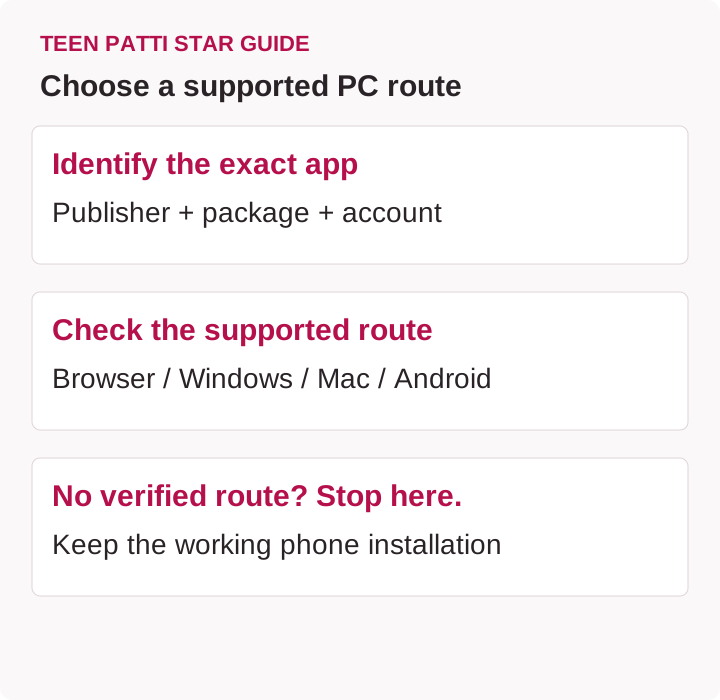
Open the app information on your existing phone and record its full title, developer, and Android package identifier where available. Also record the version and the source you originally used. These details help distinguish a genuine platform option from a separate app using similar wording.
Next, check whether that developer actually offers computer access. A page advertising “PC download” may simply provide an Android APK or instructions for a third-party emulator. Neither is the same as a native Windows installer.
On teenpattistarid.com, the Android download is identified as a separate Teen Patti Master app, not a Teen Patti Star release. Do not interpret that download as evidence of Star desktop support or expect an account from one product to transfer into another.
Compare the Main Computer Options
Check the platform and the game separately
A computer can pass a platform’s requirements while the desired game is absent from its catalogue. Record two separate results: platform can run / not established, and exact game available / not established.
On 21 September 2026, Google’s PC requirements page listed Windows 10 v2004, 8 GB RAM, an SSD with 10 GB available space, four physical CPU cores, and additional graphics, administrator and virtualization requirements. These are Google Play Games on PC requirements, not Teen Patti Star requirements and not an emulator benchmark. Use the complete Google requirements, then look for the exact publisher and game in its catalogue.
If the platform runs but the game is unavailable, a second APK with a similar name does not solve compatibility. This guide has no tested Star PC configuration to offer.
Swipe the table sideways to compare.
| Route | What you need to confirm | Important limitation |
|---|---|---|
| Browser game | The developer provides a playable web version | A promotional website is not necessarily a game client |
| Native Windows app | A genuine Windows release from the intended publisher | An APK is not a Windows installer |
| Mac-compatible app | The exact app is offered for your Mac | iPhone availability does not guarantee Mac availability |
| Google Play Games on PC | The exact game is available and compatible | The platform does not include every Android game |
| Android emulator | Hardware support, app compatibility, and permitted use | Installing successfully does not prove reliable gameplay |
Browser game
- What you need to confirm
- The developer provides a playable web version
- Important limitation
- A promotional website is not necessarily a game client
Native Windows app
- What you need to confirm
- A genuine Windows release from the intended publisher
- Important limitation
- An APK is not a Windows installer
Mac-compatible app
- What you need to confirm
- The exact app is offered for your Mac
- Important limitation
- iPhone availability does not guarantee Mac availability
Google Play Games on PC
- What you need to confirm
- The exact game is available and compatible
- Important limitation
- The platform does not include every Android game
Android emulator
- What you need to confirm
- Hardware support, app compatibility, and permitted use
- Important limitation
- Installing successfully does not prove reliable gameplay
Choose the route with the clearest publisher support, not the route with the most enthusiastic download claim. If none can be verified, continuing on a supported phone is a reasonable outcome.
Playing on Windows: A Practical Checking Order
1. Look for a Supported Browser or Windows Release
Begin with the publisher’s own platform information. If it lists a browser game, check the destination before signing in. A web address that looks similar to the app name can still belong to someone else.
If a Windows installer is offered, examine the publisher information and any operating-system warning before continuing. Do not rename an APK to an EXE or follow instructions that promise to “convert” it by changing the extension. File names do not change the underlying application format.
2. Check Google Play Games on PC Separately
Google Play Games on PC is another possible route for games that are available through it. Its published requirements include a supported Windows system, adequate memory and SSD storage, and hardware virtualization. Meeting those requirements only establishes that the computer may run the platform; it does not establish that your Teen Patti app is included. Consult the official PC requirements for the current specification.
Search for the exact game within the platform and read its compatibility information. If it is unavailable, do not assume that an unrelated listing is the same game with a different icon.
3. Consider an Emulator Only After Checking Support
An Android emulator provides an Android environment on a computer. It adds another software layer, with its own requirements, updates, permissions, and possible problems.
Check both sides: whether the emulator supports your computer, and whether the game developer allows and supports emulator use. A tutorial showing an app opening is not proof that account login, purchases, updates, or multiplayer will work correctly. Do not use modified device identifiers or bypass tools to defeat restrictions.
Playing on Mac: Check the Processor First
Mac compatibility depends on more than the macOS version. Check whether your machine uses an Intel processor or Apple silicon, then match that information to the software’s current requirements.
Some iPhone and iPad apps are available on Macs with Apple silicon through the Mac App Store. Apple labels compatible listings accordingly, but not every mobile app is offered. An iPhone listing alone is therefore insufficient evidence that the same Teen Patti product can be installed on your Mac. Apple explains this distinction in its guide to iPhone and iPad apps on Mac.
An Android emulator is a different route. For example, BlueStacks Air publishes Mac requirements for supported Apple-silicon machines. Treat it as an option to investigate, not a verified recommendation for Teen Patti Star. Check the emulator’s current system specifications before downloading anything.
A Safe First-Launch Workflow
Once you have confirmed a suitable route, install the platform from its identifiable source and review each prompt. Avoid bundled utilities that are unrelated to running the game. Keep operating-system security protections enabled.
Then locate the exact game. Where an APK is involved, compare its source and identity with the intended Android app. A matching title is a starting point, not a safety guarantee. Stop if installation depends on ignoring a serious security warning or granting an unexplained permission.
Before joining a table, test basic navigation, readable text, sound controls, and mouse input. If the game has a verified free practice mode, use that for the test. Watch for buttons that appear off-screen or clicks that register in the wrong place. A stretched window can create usability problems even when the app launches.
Finally, close and reopen the game to check that you understand its login behavior. Do not test account recovery by deleting your working phone installation.
Protect Your Existing Account Before Switching Devices
A guest account may depend on local information that does not transfer automatically. Save the player ID, login method, and any recovery information the actual publisher recommends before changing devices.
Using the same email address does not always produce the same game account. One product may distinguish a guest profile from a linked profile, while another may use an entirely different identity system. Follow the specific app’s instructions rather than assuming universal synchronization.
Never give an installer website, chat contact, or remote helper your password, OTP, or payment credentials. A request to pay an “account transfer fee” to a personal account is a reason to stop and verify the claim through the genuine support channel.
Troubleshooting Without Risky Shortcuts
Swipe the table sideways to compare.
| Symptom | Sensible first check | What not to assume |
|---|---|---|
| Emulator will not start | Operating system, processor, memory, and virtualization requirements | That the game APK is the cause |
| Game opens to a blank screen | Current compatibility notes and graphics settings | That disabling security software will fix it |
| Login shows a new profile | Correct app and original login method | That the old account has been deleted |
| Buttons respond incorrectly | Window size and supported input settings | That automated clicking is needed |
| Connection repeatedly drops | Network stability and official service notices | That changing devices guarantees a solution |
Emulator will not start
- Sensible first check
- Operating system, processor, memory, and virtualization requirements
- What not to assume
- That the game APK is the cause
Game opens to a blank screen
- Sensible first check
- Current compatibility notes and graphics settings
- What not to assume
- That disabling security software will fix it
Login shows a new profile
- Sensible first check
- Correct app and original login method
- What not to assume
- That the old account has been deleted
Buttons respond incorrectly
- Sensible first check
- Window size and supported input settings
- What not to assume
- That automated clicking is needed
Connection repeatedly drops
- Sensible first check
- Network stability and official service notices
- What not to assume
- That changing devices guarantees a solution
Make one reversible change at a time. Record the error message and version numbers so you can tell whether the change helped. Repeatedly reinstalling everything makes diagnosis harder and may remove useful local data.
Frequently Asked Questions
Can I install a Teen Patti APK directly on Windows?
Not as a normal Windows application. An APK is an Android package. You need an appropriate supported environment, and compatibility still depends on the exact game and computer.
Is there a verified Teen Patti Star PC download here?
This guide does not provide or verify a native Star desktop installer. The site’s separate Android download should not be relabeled as a Windows or Mac version.
Will playing on a bigger screen improve my cards?
No. A larger display may make information easier to read, but it does not change the game’s hand rankings or give you a guaranteed advantage in the deal.
Treat computer play as entertainment, not an earning method. Avoid purchases during compatibility testing, and stop if the software requires unsafe workarounds. For broader boundaries around spending and play time, read our responsible gaming guidance.
Sources & scope
Specific sources revisited
These limited checks do not replace the original source dates below or constitute a device test.
Public sources checked on 15 September 2026. Examples are illustrative; no hands-on device test of a specific app was performed. Table and platform rules may differ.
- official PC requirements
- guide to iPhone and iPad apps on Mac
- emulator’s current system specifications
Related guides
Account Help
Teen Patti Star Account Missing After Changing Phones: What to Check
Compare the app, sign-in route and Player IDs on two phones. Distinguish a fresh guest profile from a missing account while preserving old-phone access.

Android Help
Teen Patti Star “App Not Installed”: Package Conflicts and Update Checks
Separate a failed first install from a rejected update, parsing error or launch crash. Keep the working app and choose the right checks.
Safety
How to Verify a Teen Patti Star APK Before Installing
Compare an APK with a trusted reference. Learn what package, signature and hash matches establish—and what remains unverified.